
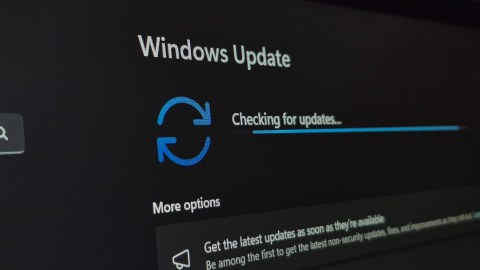
Have you ever restarted your computer to install a Windows update and stared at that damn spinning circle for minutes that seem like eternities? If you were already about to unplug everything in a fit of desperation, take a breath. Microsoft has just revealed that this wait is neither a mistake nor a sign that something went wrongbut exactly the opposite.
The Redmond-based company confirmed that this behavior is completely intentional, and the explanation behind it completely changes the way you should view those endless loading screens.
Why do Windows updates take so long?
When you click “Restart” to finish an update, Windows starts a process that is much more complex than it appears from the outside. The rotating circle display is not just decorative: the system is replacing critical files and making fundamental adjustments in the background.
Now, the key point is what happens when something does not go perfectly in that process. Instead of stopping, displaying a cryptic error code, and leaving you stranded, Windows 11 automatically activates an internal recovery system. That is, the system detects the problem, tries to correct it on its own, and moves on without asking you to do anything.
This is what the company itself explained in a recent post on its Windows Insider weblog: “The update takes additional steps in the background to complete successfully, which may lengthen the installation time”. Simply put, if the process takes longer, it’s probably because Windows is resolving an issue in time so you don’t have to deal with it later.
More waiting time, fewer failed updates
There is a logic to this behavior that, once you understand it, makes a lot of sense. The fact that the installation takes longer does not mean that something is wrong, but rather that the system is being more careful than usual.
Microsoft assures that, thanks to this automatic recovery function, The percentage of updates that complete successfully has increased significantly. Windows reviews and corrects possible errors in a timely manner before terminating the process, which prevents cases in which users end up with a half-baked system or with poorly installed patches.
And there is a group of users that especially benefits from this. According to the company, these changes are particularly useful for devices that spend little time connected to the web or that are used sporadically. For those computers, improvements have reduced errors and speeded up both the download and overall installation of updates. “These improvements are particularly relevant for devices with poor connectivity or that are not online continuously, increasing the success of updates,” Microsoft explained.
Microsoft also gives the user more adjustment on when to update
But the company did not stop at explaining what already existed. Microsoft also took the opportunity to announce important changes to the way users can manage updates.
Until now, Windows allowed you to pause updates for a maximum of five weeks and, once that period expired, the system practically forced you to install them before letting you pause again. Worse still, in some cases the “Shut Down” and “Restart” buttons would execute updates even if you had decided to postpone them. A situation that many users rightly found quite frustrating.
With the new feature starting to roll out in the coming weeks, Users will be able to pause updates indefinitelyusing a calendar that allows you to select the exact date until which you want to postpone the installation within a period of 35 days, with the possibility of pausing again without restrictions afterwards. And, in what is perhaps the most applauded improvement, The “Shutdown” and “Restart” buttons will no longer be able to install updates automatically if the user decided to postpone them.
Satya Nadella, CEO of Microsoft, has been clear that the company’s objective is regain the trust of your users in an area that has historically generated friction and complaints. With these measures, the promise is a more predictable, more transparent and, above all, less stressful update experience for those who simply want to shut down their computer without surprises.
Keep reading:
• Xbox Mode: Your Windows 11 PC can now become a console
• Windows 11: What is the difference between the different versions and which one should you install on your computer?
• How to install Windows 11 on your laptop with a new SSD drive


