
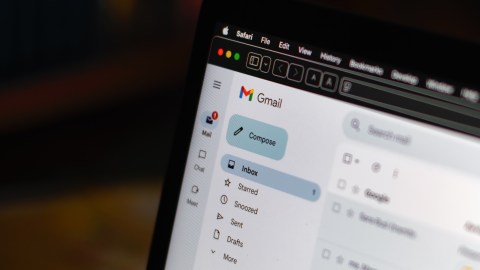
If you open your inbox and the first thing you see is an avalanche of newsletters, promotions, and notifications from platforms you don’t even remember using, you’re not alone. Millions of people live with an overflowing Gmail, not because they are disorganized, but because over the years they have left their email on dozens of websites, online stores, apps and services that never stop sending messages. The good news is that Google has a feature that allows you to see all those subscriptions at once and cancel them in secondswithout having to search for mail by mail.
The address bar trick that changes everything
Here comes the fact that you probably didn’t know. When you open Gmail from your web browser, the address above ends with the word inboxwhich is the view of your inbox. What few people know is that if you delete that part and replace it with subGmail takes you directly to a special screen where you can see all the platforms you are subscribed to.
It’s not magic, it’s a function that Google has been developing for some time and that neatly displays each sender who has been sending you emails regularly. The list includes the name of the platform or service, the email address from which they write to you, and something very useful, the total number of messages you have received from each one. This way you can see at a glance which service has been flooding your inbox with 200 emails without you realizing it.
Best of all, next to each subscription appears a button to unsubscribe directly from that same screen. You don’t have to open every email, look for the tiny “unsubscribe” link at the bottom of the text, or wait for the website to redirect you to an endless form. Gmail takes care of the process for you, asks you for a quick confirmation and that’s it, that platform disappears from the list and stops flooding your email.
How to use “Manage Subscriptions” from the Gmail menu
If for some reason the address bar trick doesn’t work for you right away, there is another route just as effective. Within Gmail, both in the web version and in the Android app, there is the option “Manage subscriptions” that Google has been progressively activating in the accounts. To find it in the browser, just click on the “More” option that appears in the left side panel of your inbox.
Once inside, the operation is identical, a complete list with all the senders who send you emails periodically, organized and easy to read. Can sort that list according to the number of emails receivedwhich is especially useful for identifying who is the biggest culprit behind the mess on your tray. If there is a service that you no longer want to know anything about, you press the button with the icon of an envelope with a minus sign, confirm that you want to unsubscribe and that’s it.
In the Android version, the path is just as direct. You open the menu from the three stripes at the top left of the screen, and the “Manage subscriptions” or “Manage subscriptions” option appears right there, below the Trash section. There is no need to install any additional app or pay for any third-party servicesGmail has it all natively integrated.
Why it’s worth taking five minutes to clean your email
Having your email full of junk is not just an aesthetic problem, it has real consequences. Every time you open Gmail and see 500 unread messages, your brain receives a signal of chaos that affects your concentration and productivity. Besides, Gmail has a storage limit of 15 GB that is shared between Drive, Photos and email, and newsletters accumulated over the years can eat up a significant portion of that space without you realizing it.
Doing this cleanup once a month can completely transform your email experience. Instead of lazily opening it and closing it without having answered anything important, you turn it into a tool that actually works for you. Cancel 20 or 30 subscriptions in a single five-minute session It is perfectly possible with this function, and the effect in your inbox is noticeable from the next day.
Keep reading:
• Tired of Gemini in Gmail? This is how you can deactivate Google AI in your email
• Gmail has a hidden trick that allows you to create infinite versions of your email
• Google adds an AI Inbox to Gmail: this way it will summarize your email and tell you what to do first


